Generate
The component that prompts the LLM to respond appropriately.
A Generate component fine-tunes the LLM and sets its prompt. It is the core text generation node, taking context from retrieval results, user input, or upstream components and producing a response.
Scenarios
Section titled “Scenarios”A Generate component is essential when you need the LLM to assist with summarizing, translating, content generation, or controlling various tasks.
Quick Reference
Section titled “Quick Reference”| Parameter | Type | Default | Description |
|---|---|---|---|
Model | string | gemini-2.5-flash | The language model to use for generation. |
Prompt | string | — | The system prompt template. Supports variable interpolation with {key} syntax. |
Temperature | number | 0.1 | Controls randomness in output (0 = deterministic, 1 = creative). |
Top P | number | 0.4 | Nucleus sampling — limits token selection to top cumulative probability. |
Frequency Penalty | number | 0.7 | Penalizes tokens based on how often they’ve appeared. |
Presence Penalty | number | 0.4 | Penalizes tokens based on whether they’ve appeared at all. |
Response format | string | — | The format of the generated response.(json or text) |
Message Window Size | number | 3 | Number of prior messages to include as context. |
Cite | boolean | true | Whether to include citations from retrieved documents. |
Configurations
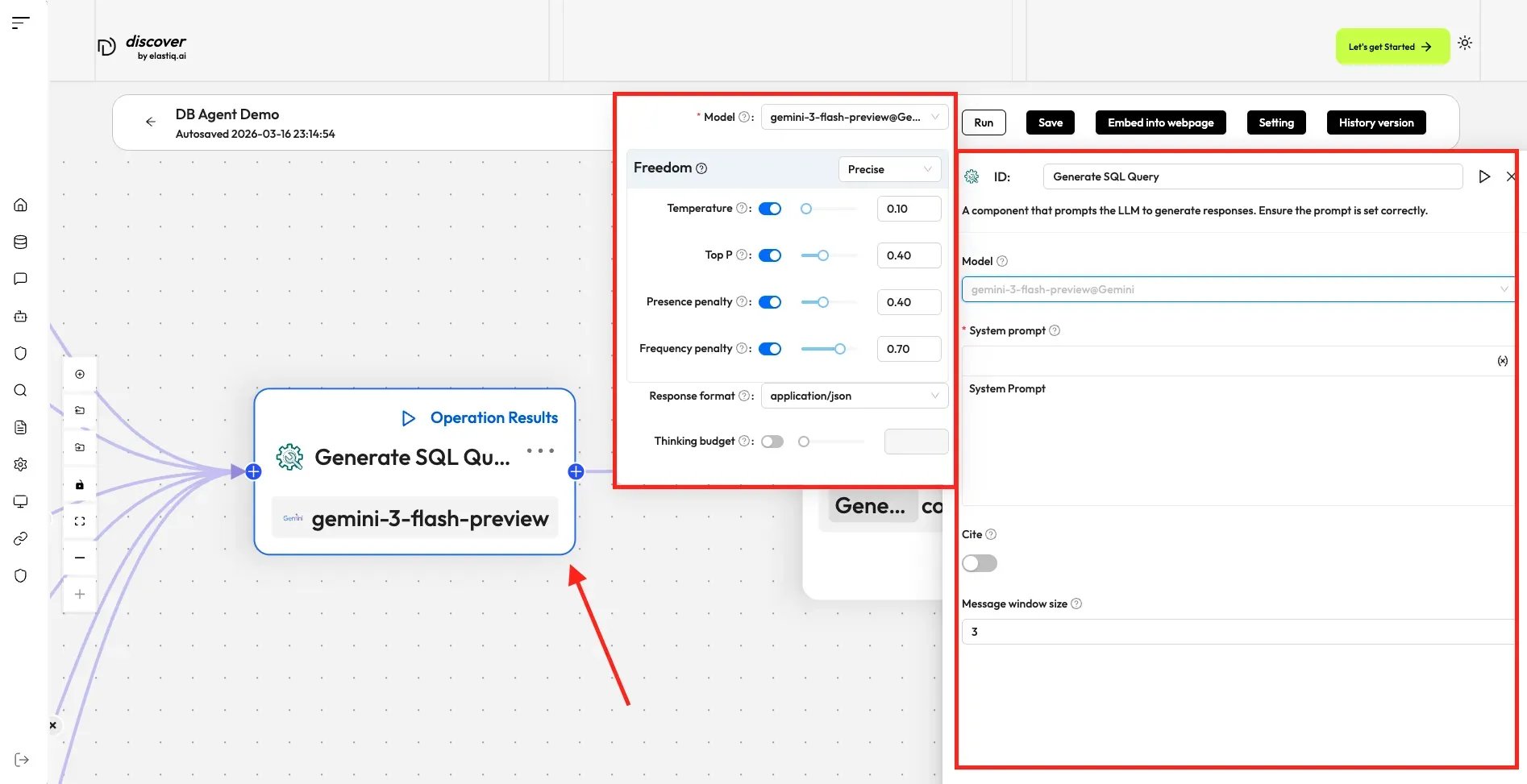
Section titled “Configurations”Click the dropdown menu of Model to show the model configuration window.
- Model: The chat model to use.
- Ensure you set the chat model correctly on the Model providers page.
- You can use different models for different components to increase flexibility or improve overall performance.
- Freedom: A shortcut to Temperature, Top P, Presence penalty, and Frequency penalty settings indicating the freedom level of the model. Options:
- Improvise: Produces more creative responses.
- Precise: (Default) Produces more conservative responses.
- Balance: A middle ground between Improvise and Precise.
- Temperature: The randomness level of the model’s output. Defaults to 0.1.
- Lower values lead to more deterministic and predictable outputs.
- Higher values lead to more creative and varied outputs.
- A temperature of zero results in the same output for the same prompt.
- Top P: Nucleus sampling. Defaults to 0.3.
- Presence penalty: Encourages the model to include a more diverse range of tokens. Defaults to 0.4.
- Frequency penalty: Discourages the model from repeating the same words or phrases. Defaults to 0.7.
System prompt
Section titled “System prompt”Describe the task for the LLM, specify how it should respond, and outline any other requirements. The system prompt is used in conjunction with keys (variables), which serve as data inputs for the LLM.
Example prompt:
Your task is to read a source text and a translation to {target_lang}, and give constructive suggestions to improve the translation. The source text and initial translation are as follows:
<SOURCE_TEXT>{source_text}</SOURCE_TEXT>
<TRANSLATION>{translation_1}</TRANSLATION>
When writing suggestions, pay attention to whether there are ways to improve the translation's fluency by applying {target_lang} grammar, spelling and punctuation rules.
Where {source_text} and {target_lang} are global variables defined in the Begin component, while {translation_1} is the output of another Generate component.
This toggle sets whether to cite the original text as reference.
Message window size
Section titled “Message window size”An integer specifying the number of previous dialogue rounds to input into the LLM. Defaults to 3.
Examples
Section titled “Examples”Explore the Generate component configurations by creating an agent and inspecting the component:
-
Click the Agent tab at the top center of the page to access the Agent page.
-
Click + Create agent on the top right of the page to open the agent template page.
-
On the agent template page, hover over the Database agent or API agent card and click Use this template.
-
Name your new agent and click OK to enter the workflow editor.
-
In the workflow editor, either:
- Click an existing Generate component in the workflow to select it, or
- Click + Add component in the toolbar, find Generate in the components list, and drag it onto the canvas.
-
With the Generate component selected, the Configuration panel opens on the right. Explore the available settings:
- Model: Select the LLM and adjust Freedom presets or fine-tune Temperature, Top P, Presence penalty, and Frequency penalty.
- System prompt: View or edit the prompt template, including any
{key}variables that pass data into the component. - Response format: Choose between
textandjsonoutput formats. - Message window size: Set how many prior dialogue rounds are passed as context.
- Cite: Toggle whether the component cites source documents in its response.