
Retrieval
A component that retrieves information from specified datasets.
The Retrieval component searches your connected knowledge bases and returns the most relevant documents for a given query. It uses a combination of weighted keyword similarity and weighted vector cosine similarity to find the best results.
Scenarios
Section titled “Scenarios”A Retrieval component is essential in most RAG scenarios, where information is extracted from designated knowledge bases before being sent to the LLM for content generation.
Quick Reference
Section titled “Quick Reference”| Parameter | Type | Default | Description |
|---|---|---|---|
Knowledge Bases | string[] | [] | The knowledge base(s) to search. |
Similarity Threshold | number | 0.2 | Minimum similarity score for a result to be included (0–1). |
Keywords Similarity Weight | number | 0.7 | Weight given to keyword matching vs. vector similarity (0–1). |
Top N | number | 8 | Maximum number of results to return. |
Configurations
Section titled “Configurations”Click on a Retrieval component to open its configuration window.
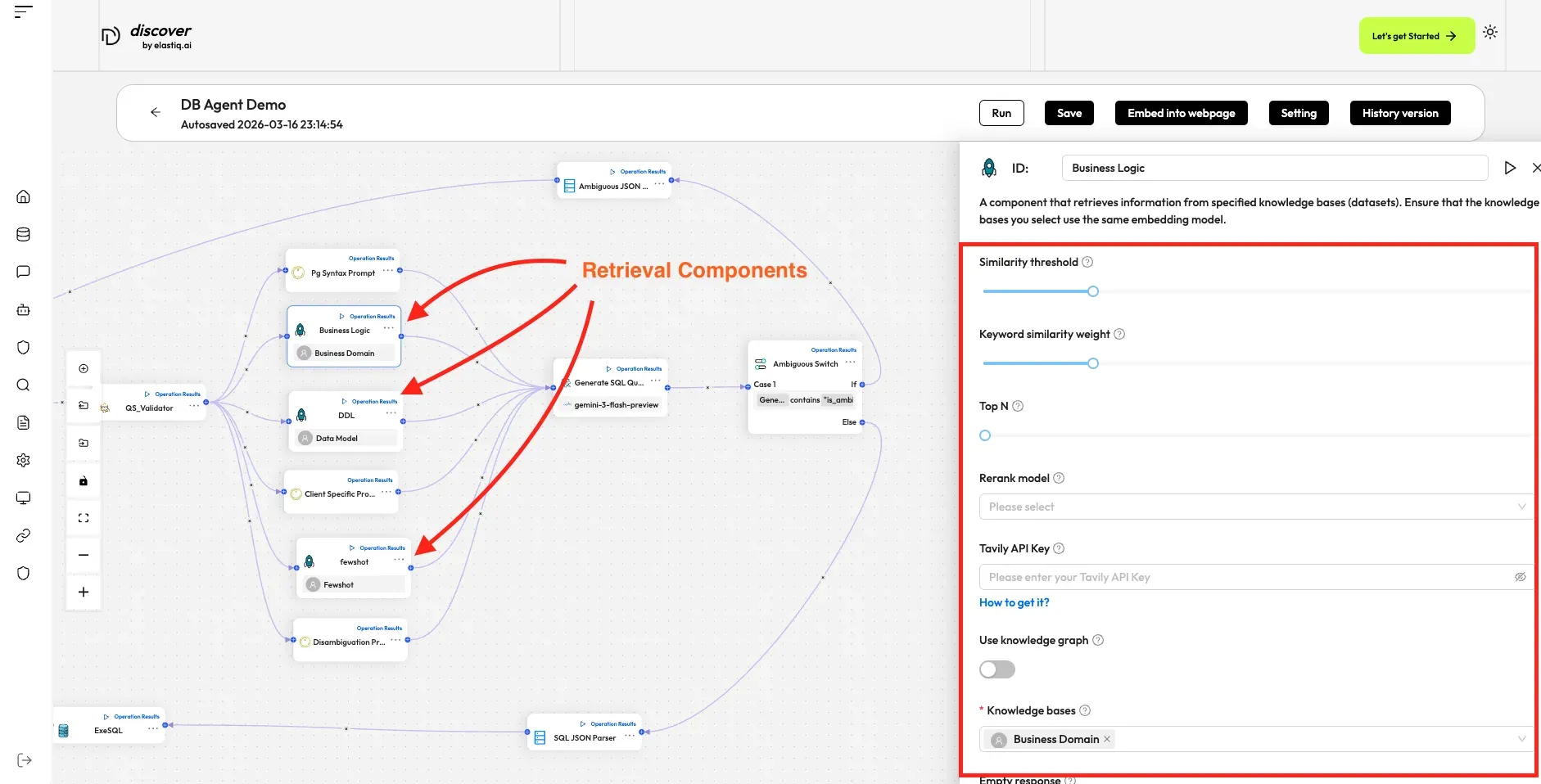
The Retrieval component relies on input variables to specify its data inputs (queries). Click + Add variable in the Input section to add the desired input variables. There are two types of input variables: Reference and Text.
- Reference: Uses a component’s output or a user input as the data source. You are required to select from the dropdown menu:
- A component ID under Component Output, or
- A global variable under Begin input, which is defined in the Begin component.
- Text: Uses fixed text as the query. You are required to enter static text.
Similarity threshold
Section titled “Similarity threshold”This parameter sets the threshold for similarities between the user query and chunks stored in the datasets. Any chunk with a similarity score below this threshold will be excluded from the results.
Defaults to 0.2.
Keyword similarity weight
Section titled “Keyword similarity weight”This parameter sets the weight of keyword similarity in the combined similarity score. The total of the two weights must equal 1.0. Its default value is 0.2, which means the weight of vector similarity in the combined search is 1 − 0.2 = 0.8.
Selects the Top N chunks from retrieved results and feeds them to the LLM.
Defaults to 5.
Rerank model
Section titled “Rerank model”Optional
If left empty, Discover will use a combination of weighted keyword similarity and weighted vector cosine similarity; if a rerank model is selected, a weighted reranking score will replace the weighted vector cosine similarity.
Tavily API key
Section titled “Tavily API key”Optional
Enter your Tavily API key here to enable Tavily web search during retrieval.
Knowledge bases
Section titled “Knowledge bases”Optional
Select the knowledge base(s) to retrieve data from.
- If no knowledge base is selected, conversations with the agent will not be based on any knowledge base. Ensure that the Empty response field is left blank to avoid an error.
- If you select multiple knowledge bases, you must ensure they all use the same embedding model; otherwise, an error message will occur.
Empty response
Section titled “Empty response”- Set this as a response if no results are retrieved from the knowledge base(s) for your query, or
- Leave this field blank to allow the chat model to improvise when nothing is found.
Examples
Section titled “Examples”Explore our Database agent template, where the Retrieval component (component ID: Business Logic/DDL/Fewshot) is used to search the dataset and send the Top N results to the LLM:
-
Click the Agent tab at the top center of the page to access the Agent page.
-
Click + Create agent on the top right of the page to open the agent template page.
-
On the agent template page, click the Database Agent, fill the form with the required information and click Create Agent.
-
Name your new agent and click OK to enter the workflow editor.
-
Click on the Retrieval component to display its Configuration window.