
Removing Users
Admins can either permanently delete a user or temporarily disable their access without removing their account.
Delete a User
Section titled “Delete a User”Deleting a user is permanent and cannot be undone. All of their account data will be removed.
-
In the Keycloak admin console, click Users in the left sidebar.
-
Find the user you want to remove and click on their name to open their profile.
-
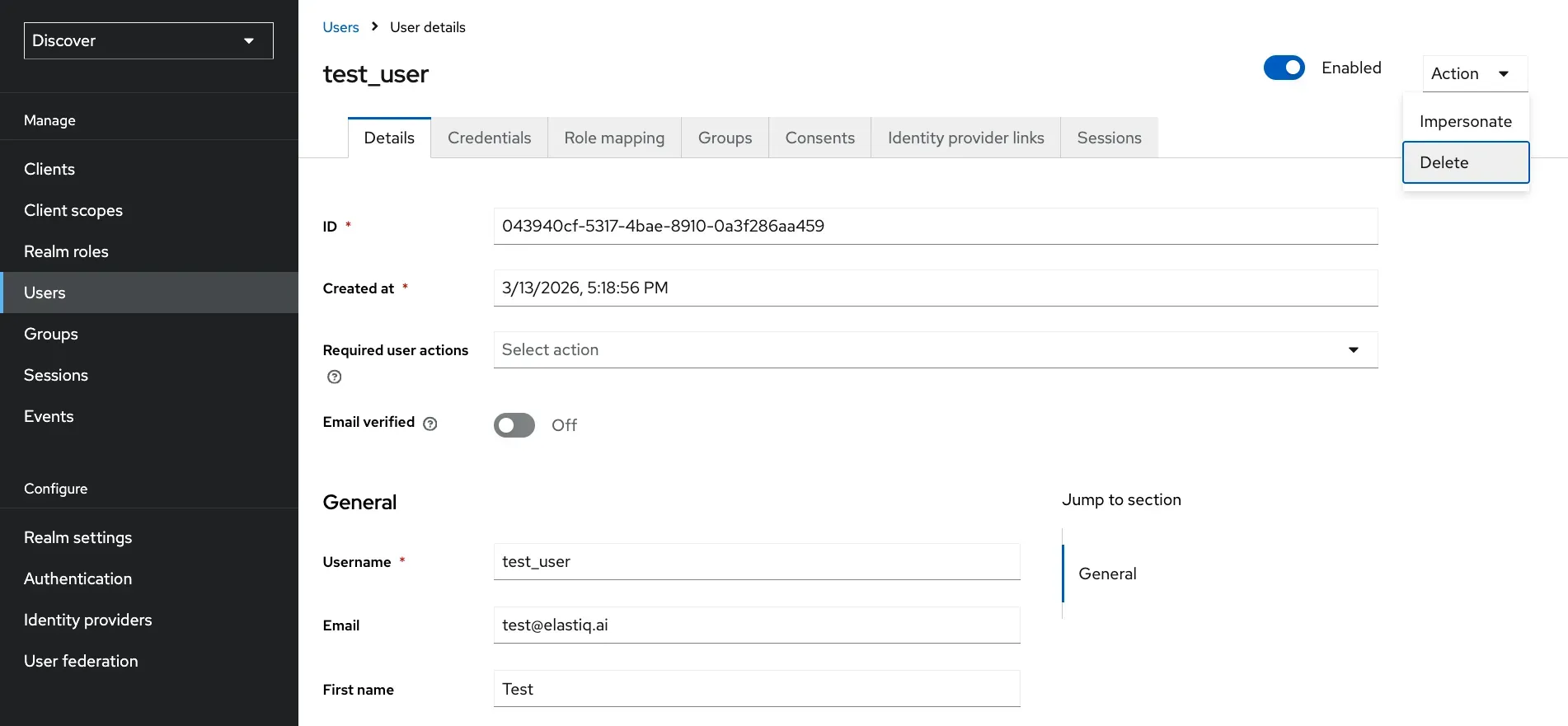
Click the Action dropdown (top right of the user detail page) and select Delete.
-
Confirm the deletion in the dialog that appears.
Delete Users in Bulk
Section titled “Delete Users in Bulk”To delete multiple users at once:
-
In the Keycloak admin console, click Users in the left sidebar.
-
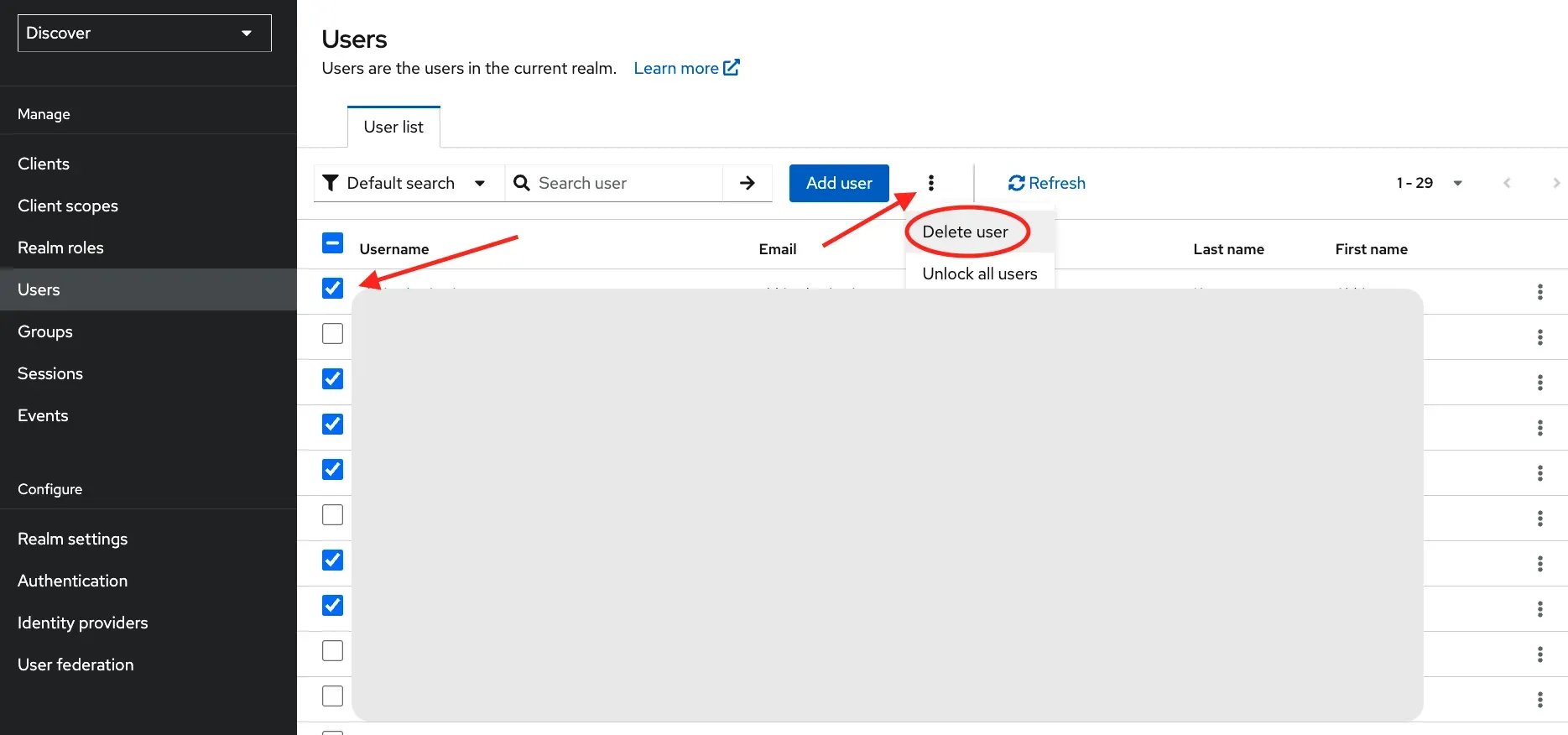
Select the checkboxes next to each user you want to delete from the Users list.
-
Click the three-dot menu (⋮) at the top of the list.
-
Select Delete from the dropdown.
-
In the confirmation popup, click Delete to confirm.
Disable a User
Section titled “Disable a User”Disabling a user suspends their access while preserving their account. You can re-enable them at any time.
-
In the Keycloak admin console, click Users in the left sidebar.
-
Click on the user you want to disable to open their profile.
-
On the Details tab, toggle the Enabled switch to Off.
-
Click Save at the very end.
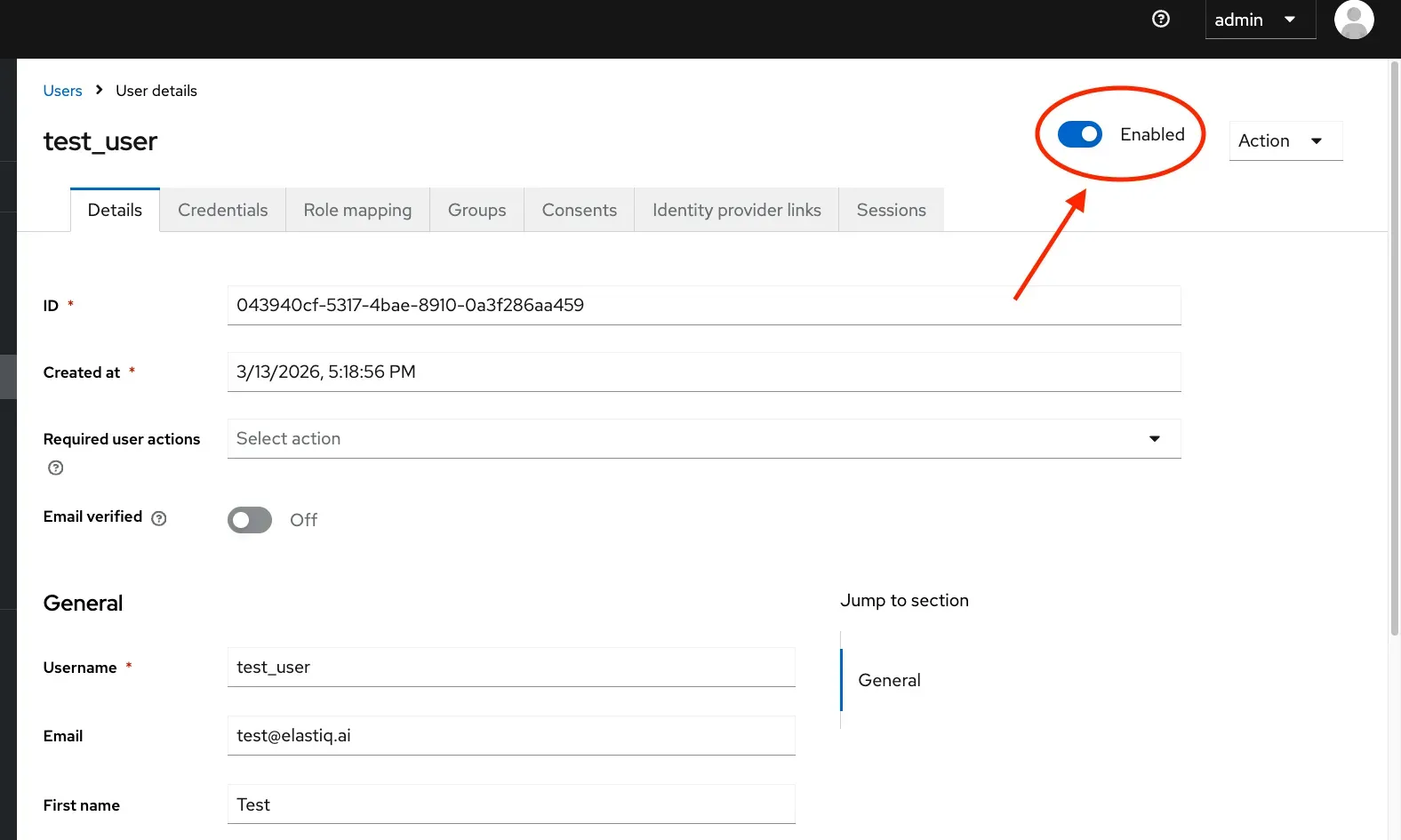
The user will be immediately signed out and unable to log back in until re-enabled.