
Reset Password
Admins can manually reset a password for any user directly from the Keycloak admin console. This is useful when a user is locked out or has forgotten their credentials.
Reset a User’s Password
Section titled “Reset a User’s Password”-
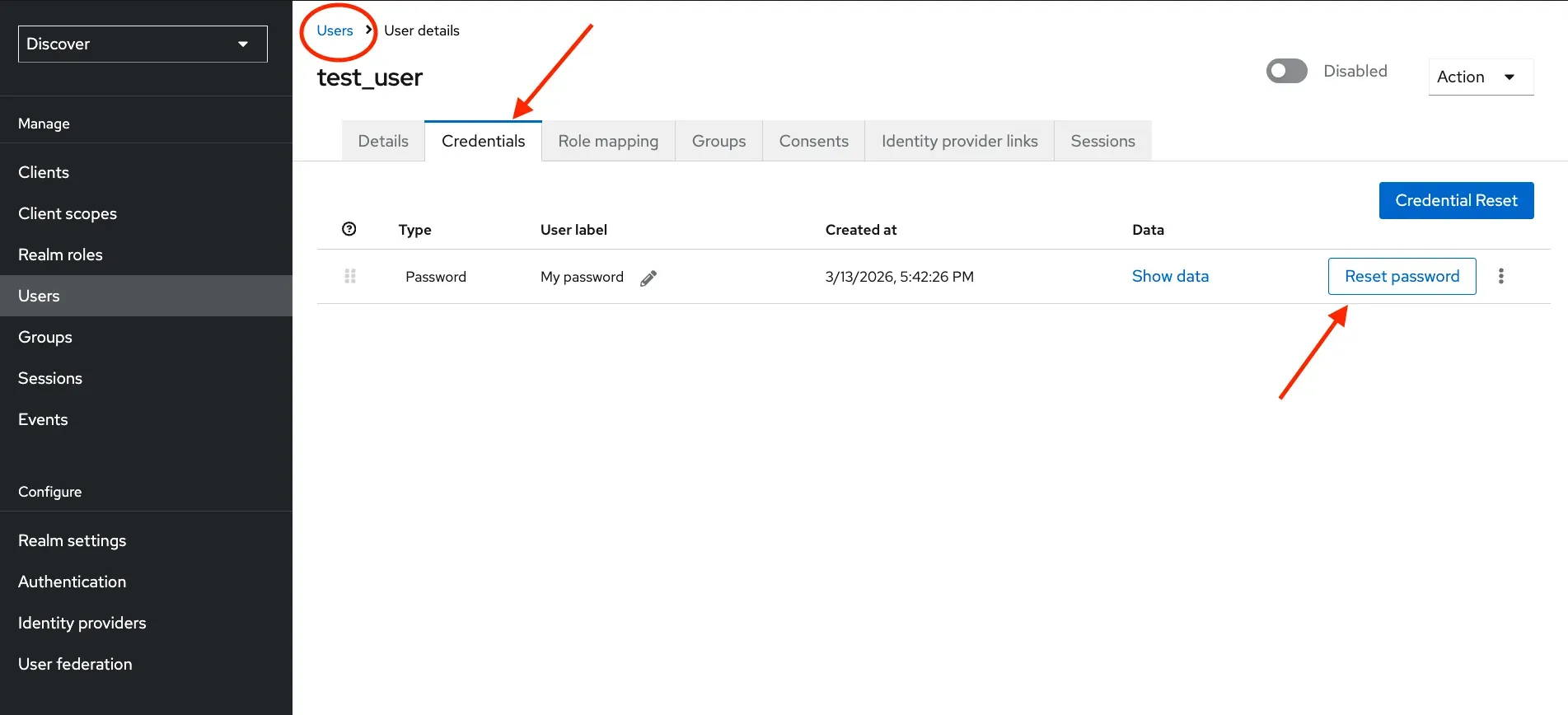
In the Keycloak admin console, click Users in the left sidebar.
-
Find and click on the user whose password you want to reset.
-
Go to the Credentials tab on the user’s profile page.
-
Click the Reset password button.
-
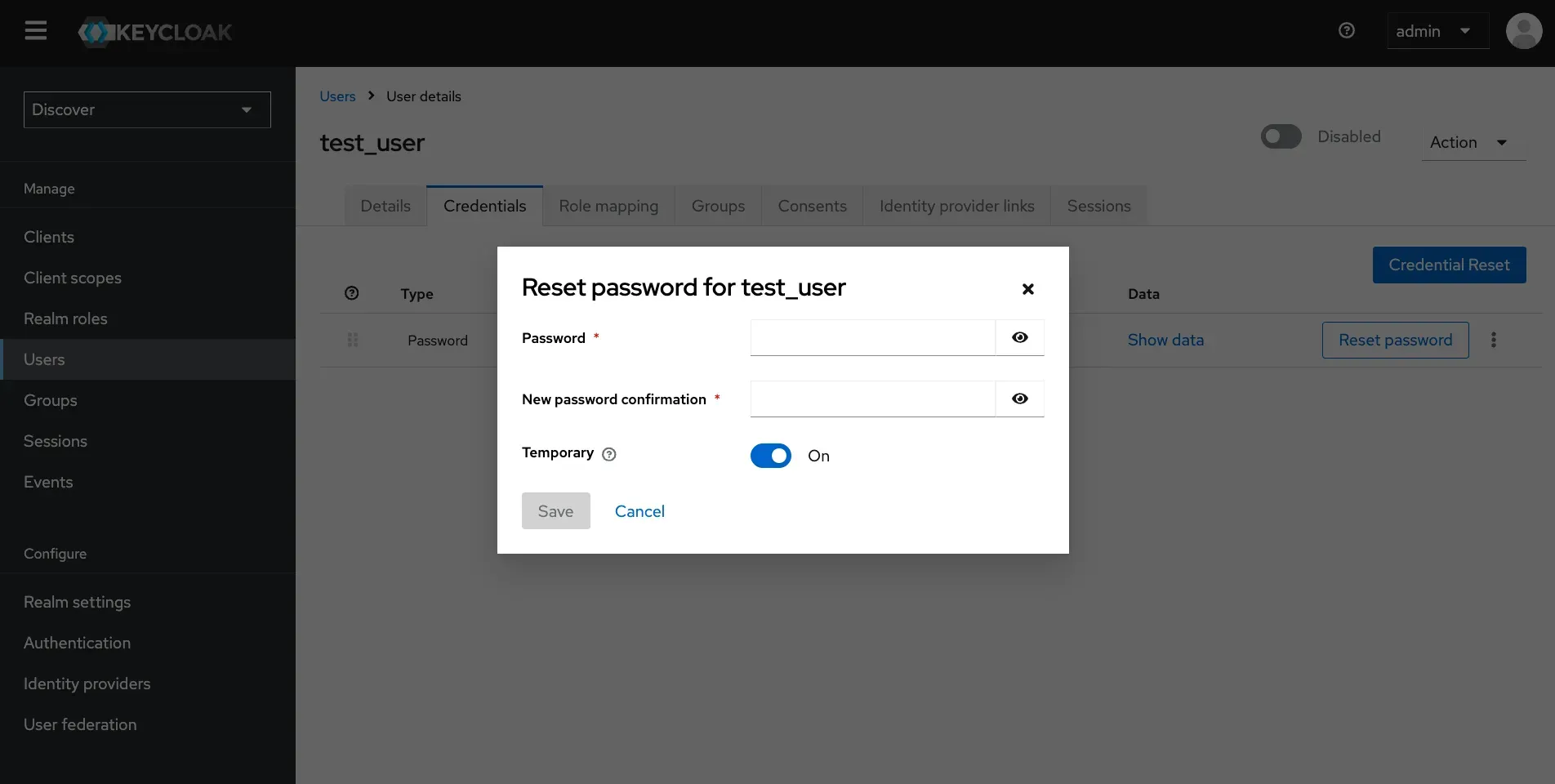
Enter a new temporary password and confirm it.
-
Toggle Temporary to On if you want the user to be prompted to change their password on next login (recommended), or Off to set it as permanent.
-
Click Save to confirm.
The user can now log in with the new password. If temporary was enabled, they will be prompted to set a new one immediately after signing in.