
Role Management
All newly onboarded users receive the viewer role by default. Admins can promote users to higher-privilege roles from the Keycloak admin console.
Available Roles
Section titled “Available Roles”| Role | Description |
|---|---|
user | Regular read/write access |
client_admin | Team-level admin — can manage team members and settings |
Assign a Role
Section titled “Assign a Role”-
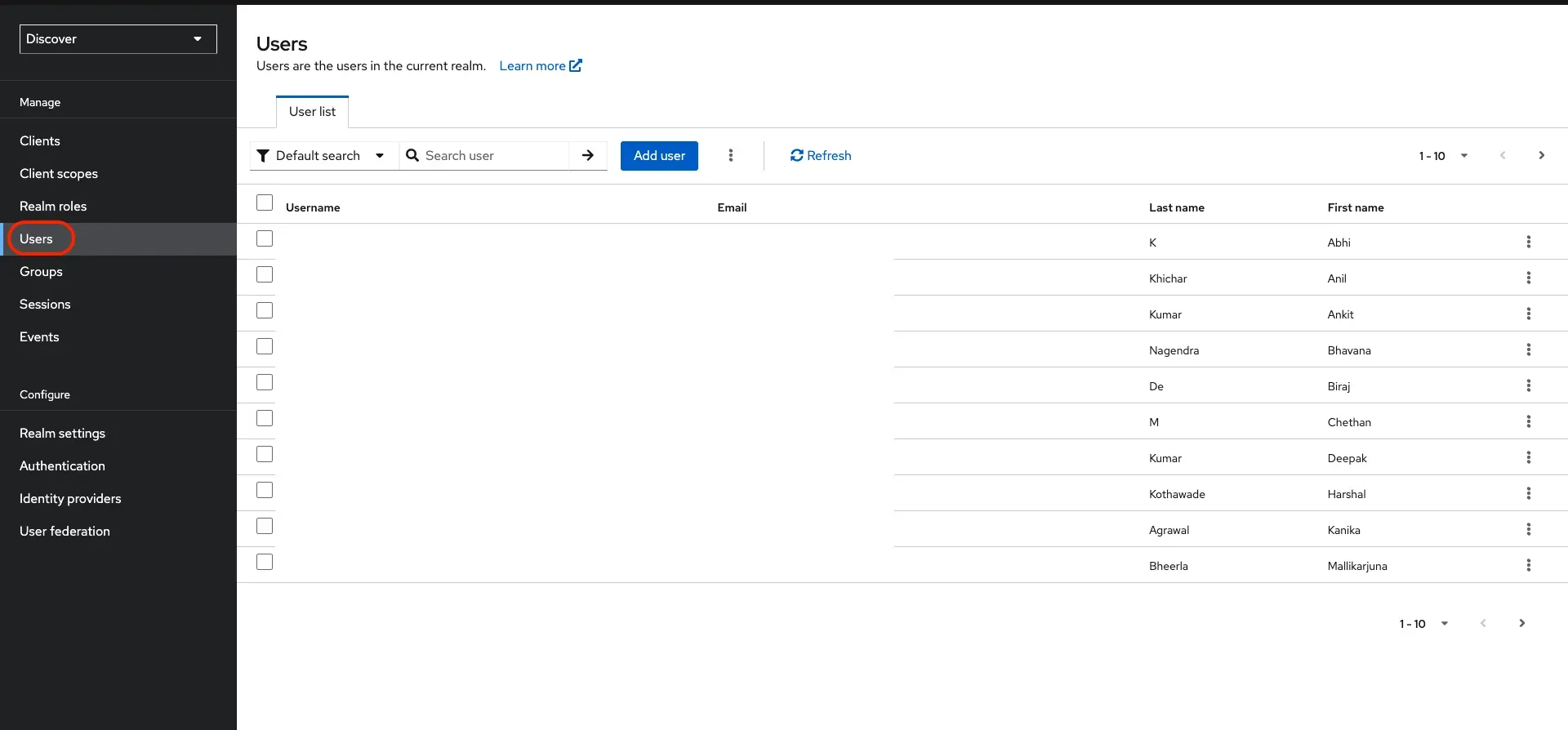
Open the Users list
In the Keycloak admin console, click Users in the left sidebar and find the user you want to update.
-
Open their profile
Click on the user’s name to open their profile page.
-
Go to Role Mapping
Select the Role mapping tab.
-
Assign a role
Click Assign role. In the dialog that opens:
- Use the Filter by realm roles dropdown to show realm-level roles
- Select the role you want to assign (e.g.
super_adminorclient_admin) - Click Assign
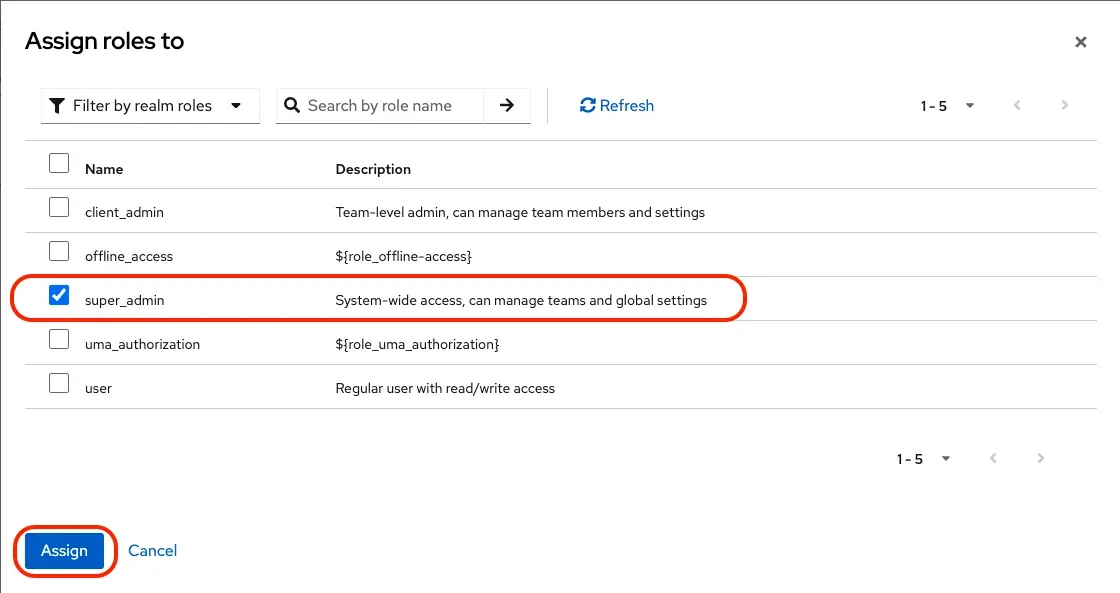
The user’s permissions are updated immediately — no restart or re-login required.
Remove a Role
Section titled “Remove a Role”To downgrade a user’s role, go to their Role mapping tab, select the role you want to remove, and click Unassign.