Creating Knowledge Bases
Knowledge bases store and organize your documents for AI-powered retrieval. Knowledge base, hallucination-free chat, and file management are the three pillars of Discover. Each knowledge base serves as a knowledge source, parsing files uploaded from your local machine into real ‘knowledge’ for future AI chats.
Creating a Knowledge Base
Section titled “Creating a Knowledge Base”With multiple knowledge bases, you can build more flexible, diversified question answering. To create your first knowledge base:
-
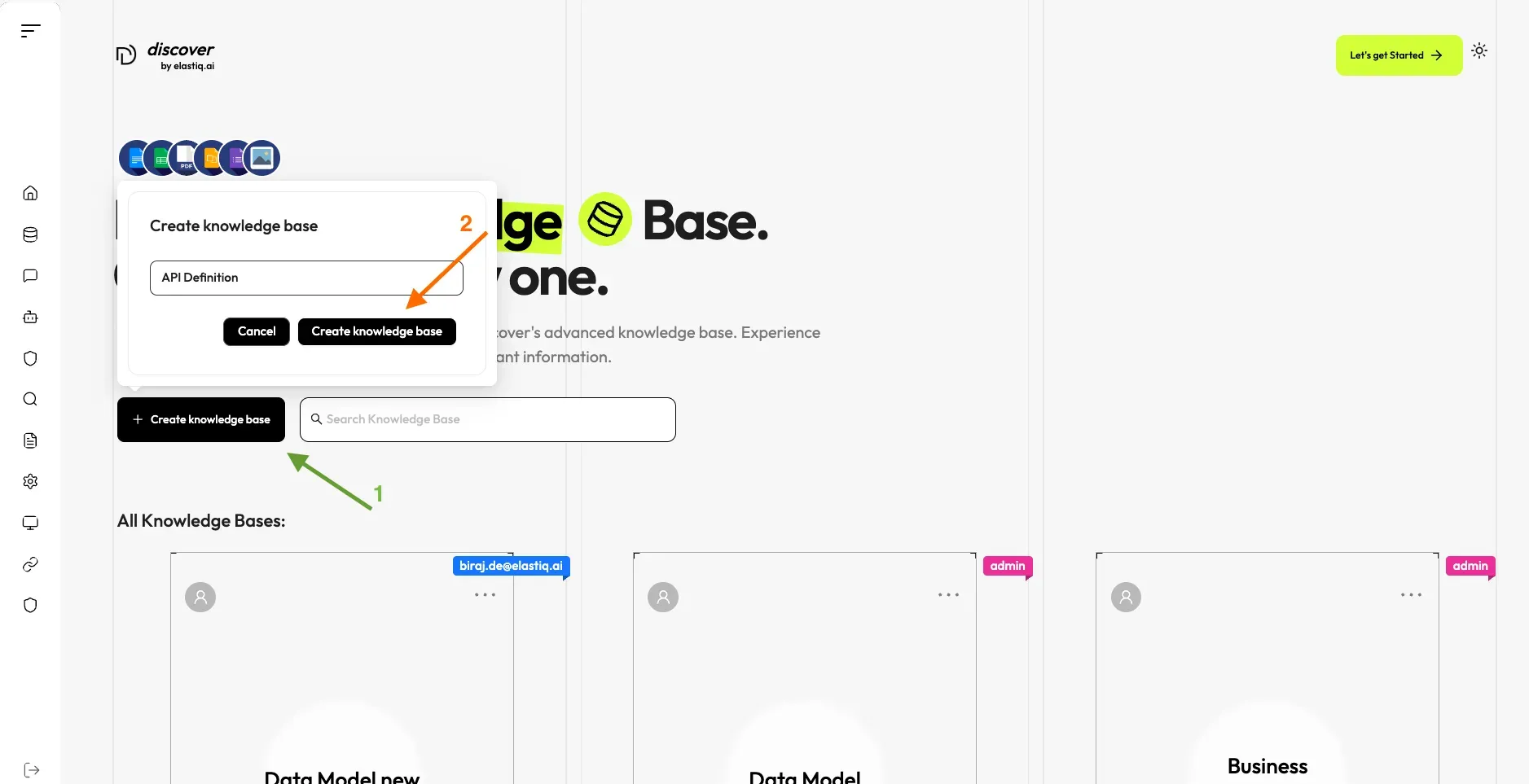
Click on Knowledge Base in the left sidebar.
-
Click Create Knowledge Base.
-
Enter a name for your knowledge base (e.g., “Data Model”, “API Definition”).
-
Click OK to confirm.
Configuring Your Knowledge Base
Section titled “Configuring Your Knowledge Base”A proper configuration of your knowledge base is crucial for future AI chats. Choosing the wrong embedding model or chunk method can cause unexpected semantic loss or mismatched answers.
On the Configuration page:
-
Modify the KB permission to allow team members to modify the KB.
-
Select the embedding model (e.g., gemini-embedding-01).
-
If required, modify the Chunk Method and recommended chunk size.
-
Add a proper delimiter (e.g.,
##) according to your document for better chunk creation.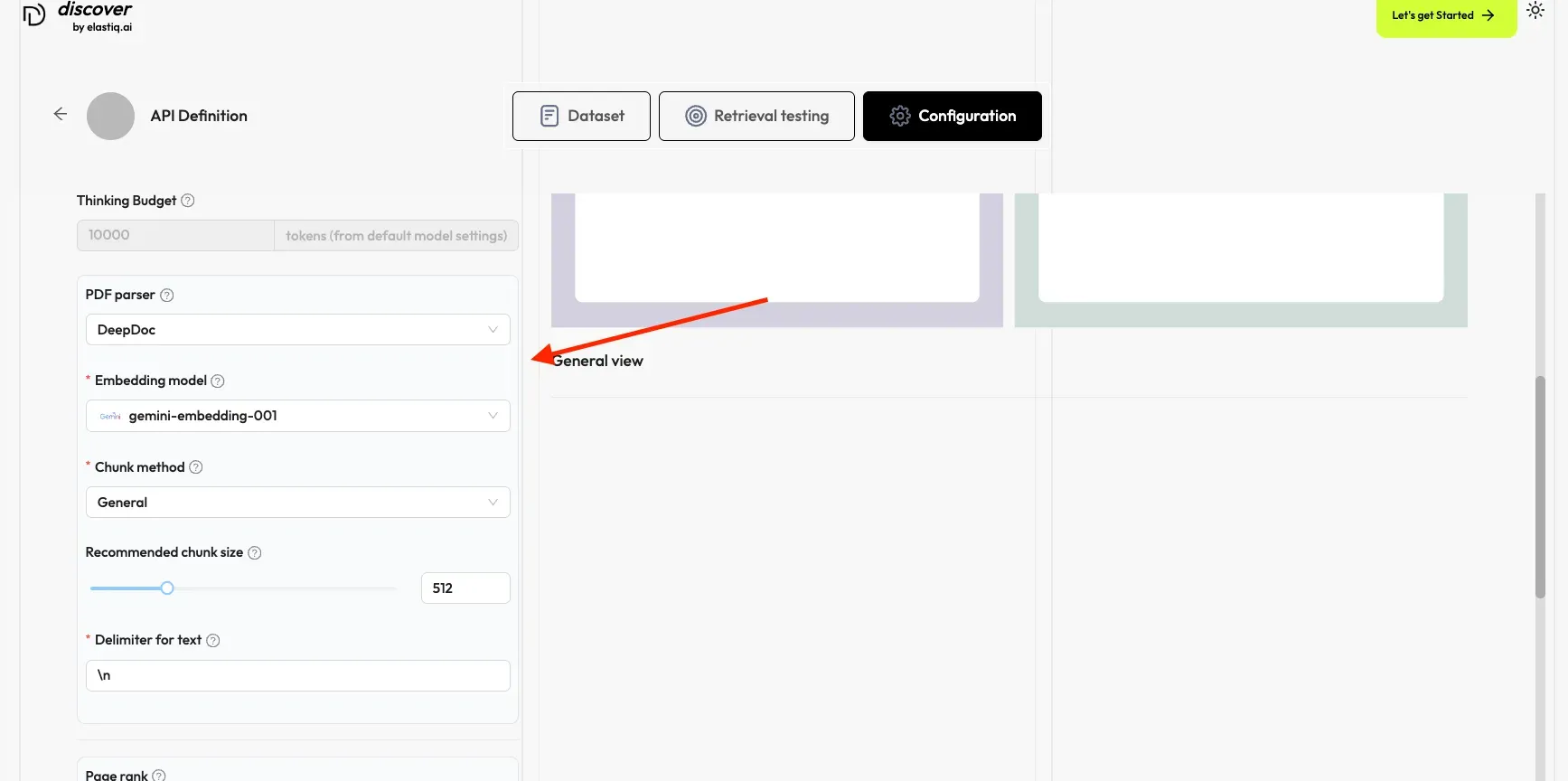
-
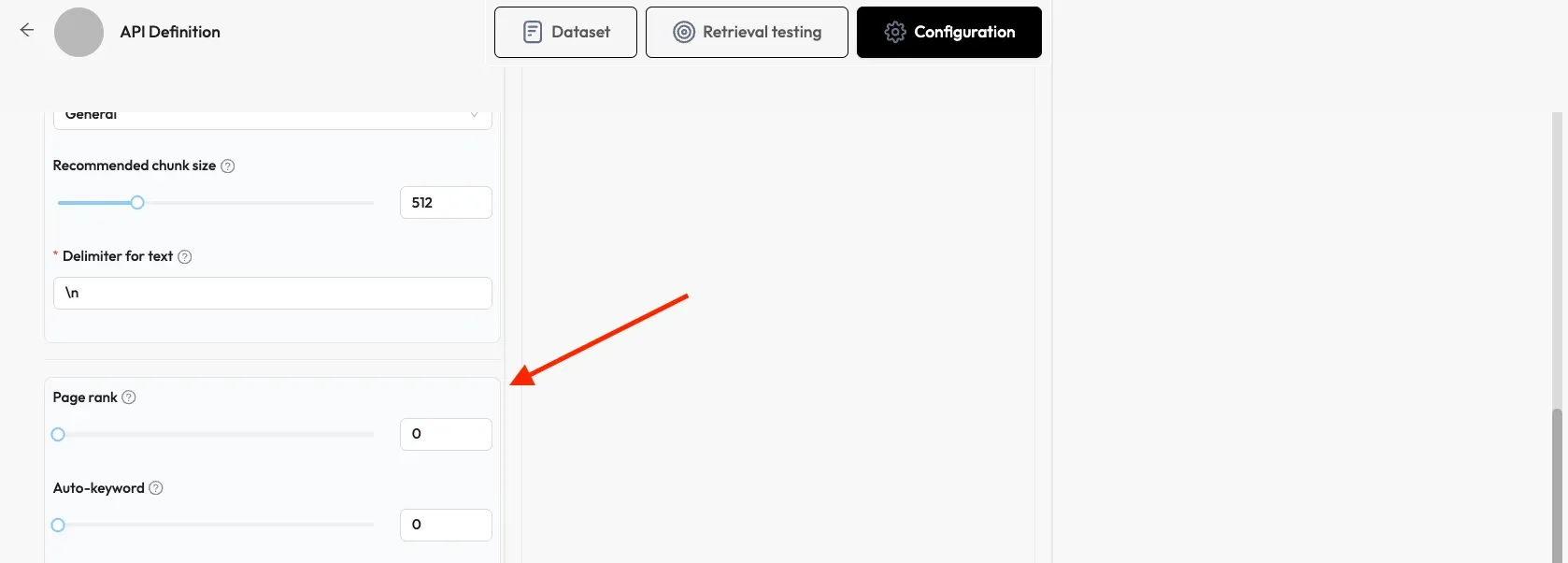
Configure Page Rank settings.
-
Set Auto-Keyword count (e.g., 5). This configuration allows to automatically extract N keywords for each chunk to increase their ranking for queries containing those keywords.
Selecting a Chunk Method
Section titled “Selecting a Chunk Method”Discover offers multiple chunking templates to facilitate chunking files of different layouts and ensure semantic integrity. The following table describes each supported chunk template:
| Template | Description | File Format |
|---|---|---|
| General | Files are consecutively chunked based on a preset chunk token number. | DOCX, XLSX, XLS, PPT, PDF, TXT, JPEG, JPG, PNG, TIF, GIF, CSV, JSON, EML, HTML |
| Q&A | Parses question-and-answer pairs. | XLSX, XLS, CSV/TXT |
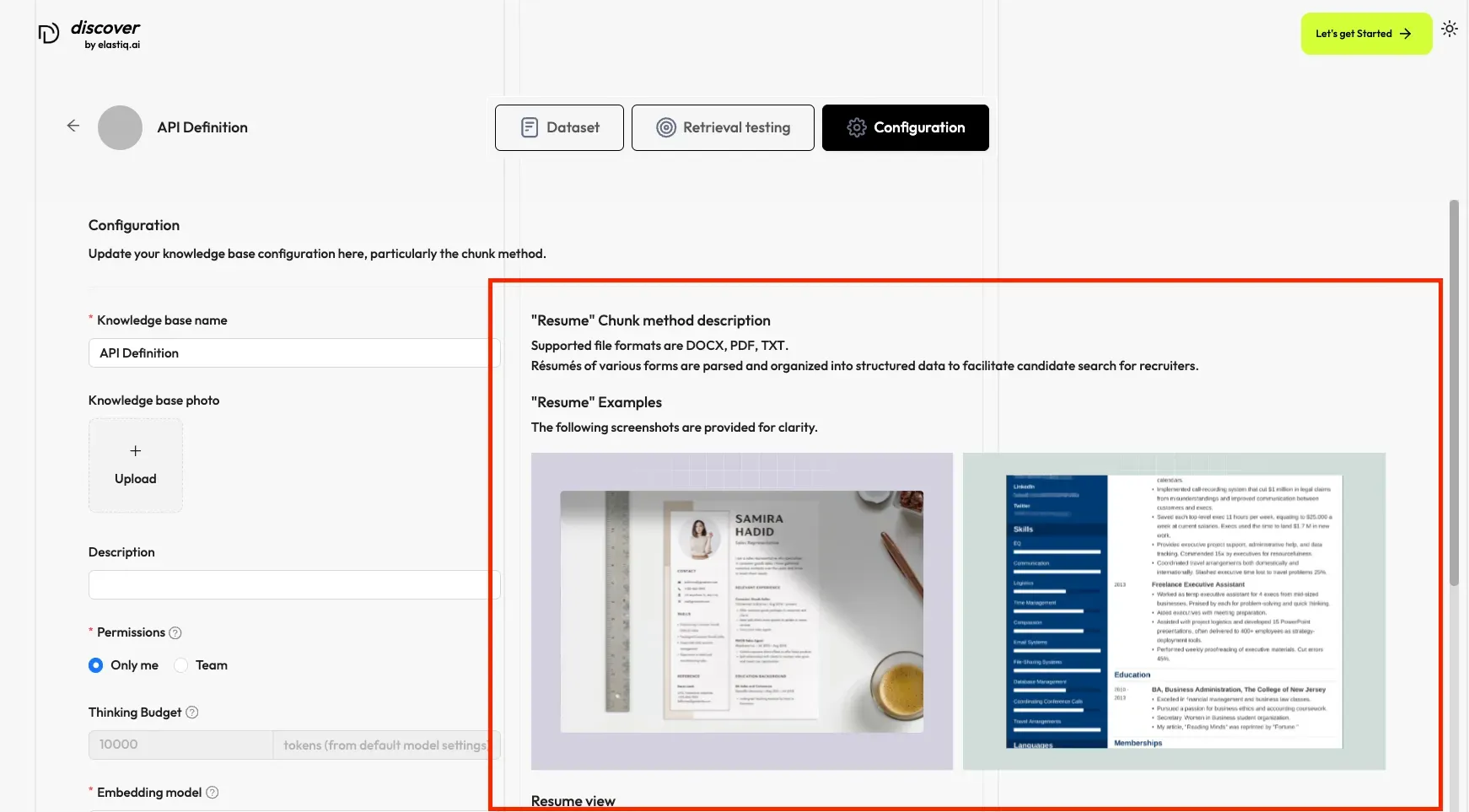
| Resume | Optimized for resume/CV documents. | DOCX, PDF, TXT |
| Manual | Manual chunking with user control. | |
| Table | Optimized for tabular data. | XLSX, XLS, CSV/TXT |
| Paper | Optimized for academic papers. | |
| Book | Optimized for book-length documents. | DOCX, PDF, TXT |
| Laws | Optimized for legal documents. | DOCX, PDF, TXT |
| Presentation | Optimized for slide presentations. | PDF, PPTX |
| Picture | Processes image files. | JPEG, JPG, PNG, TIF, GIF |
| One | Each document is chunked in its entirety (as one). | DOCX, XLSX, XLS, PDF, TXT |
| Tag | The knowledge base functions as a tag set for others. | XLSX, CSV/TXT |
You can also change a file’s chunk method on the Datasets page after uploading.
The selected chunking method description appears on the right side of the Configuration Page.
Selecting an Embedding Model
Section titled “Selecting an Embedding Model”An embedding model converts chunks into embeddings. It cannot be changed once the knowledge base has chunks. To switch to a different embedding model, you must delete all existing chunks. This ensures all files in a specific knowledge base are compared in the same embedding space.
Uploading Documents
Section titled “Uploading Documents”-
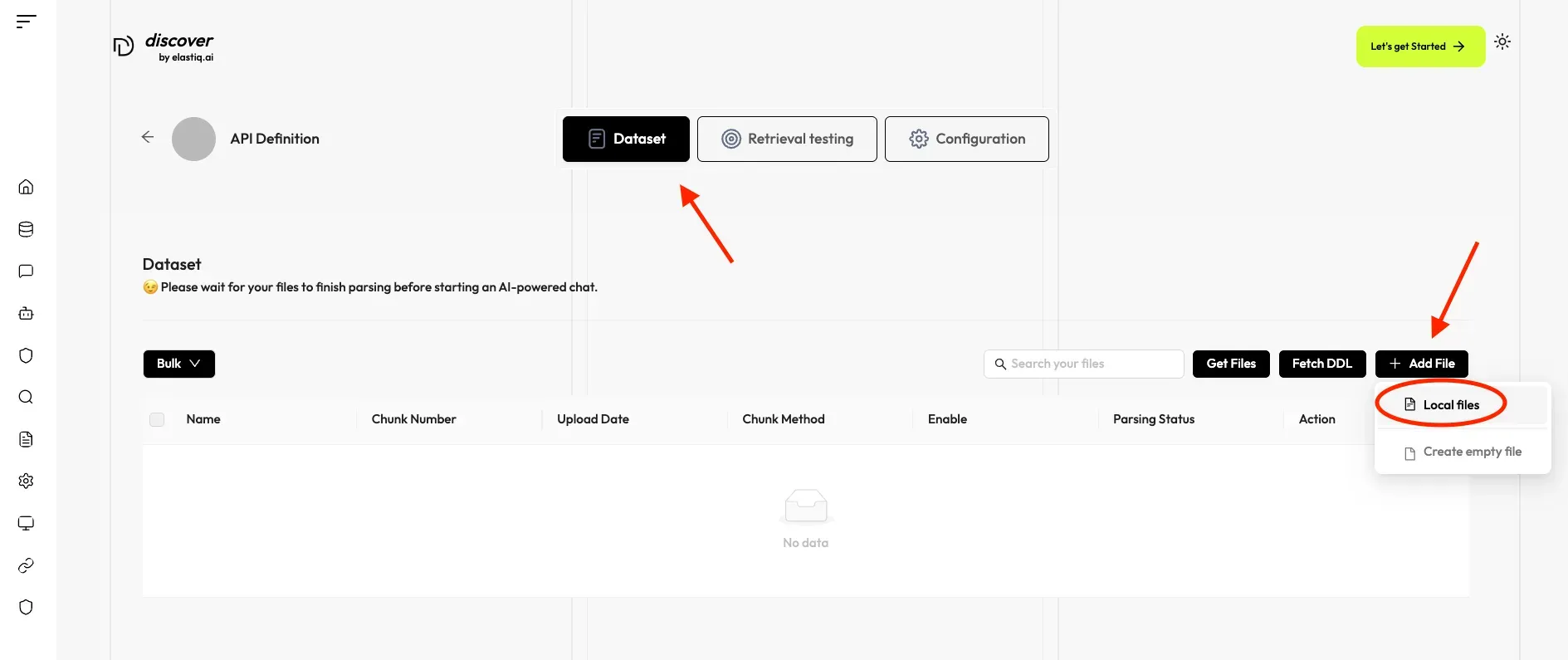
Click on Dataset at the top to upload files.
-
Select Add File, and Local File to upload a file from your device.
-
Select supported file types (PDF, DOCX, TXT, CSV, images, etc.) from your device.
-
Once uploaded, you can click the parse button to process the document and divide it into chunkings. See Parsing Files for more details.
-
Monitor the parsing progress — you can intervene if needed by adjusting settings like chunking methods.
Parsing Files
Section titled “Parsing Files”File parsing is a crucial step in knowledge base configuration. It involves chunking files based on file layout and building embedding and full-text (keyword) indexes on those chunks.
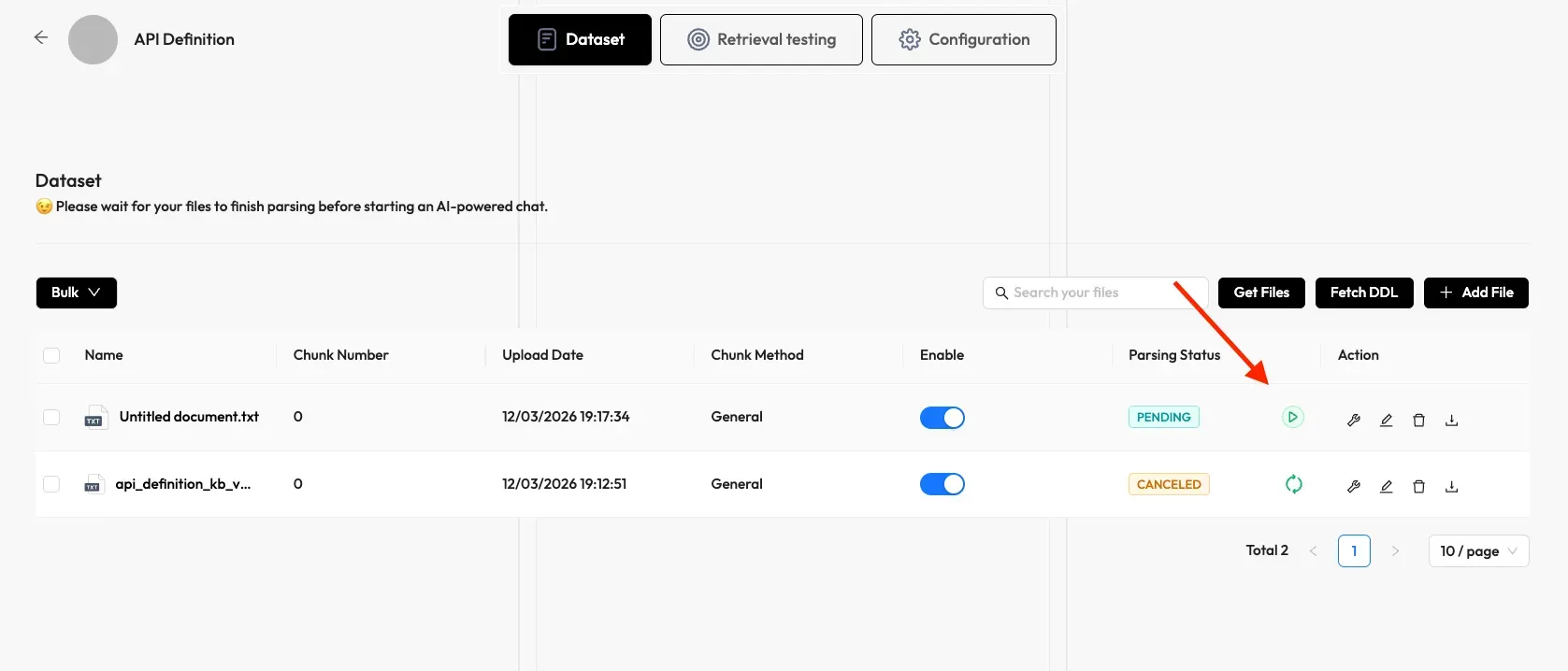
- Click the play button next to UNSTART to start file parsing.
- Click the red-cross icon and then refresh if your file parsing stalls for a long time.
- Discover allows you to use a different chunk method for a particular file, offering flexibility beyond the default method.
- You can enable or disable individual files for finer control over knowledge base-based AI chats.
Intervening with Parsing Results
Section titled “Intervening with Parsing Results”Discover features visibility and explainability, allowing you to view and intervene in chunking results:
-
Click on a file that has completed parsing to view the chunking results (you are taken to the Chunk page).
-
Hover over each snapshot for a quick view of each chunk.
-
Double-click the chunked texts to add keywords or make manual changes where necessary.
Running Retrieval Tests
Section titled “Running Retrieval Tests”Discover uses multiple recall of both full-text search and vector search in its chats. Prior to setting up an AI chat, consider adjusting the following parameters:
- Similarity threshold: Chunks with similarities below the threshold will be filtered. Defaults to 0.2.
- Vector similarity weight: The percentage by which vector similarity contributes to the overall score. Defaults to 0.3.
In Retrieval testing, enter a test question in Test text to double-check if your configurations work. Discover responds with truthful citations.
Searching for a Knowledge Base
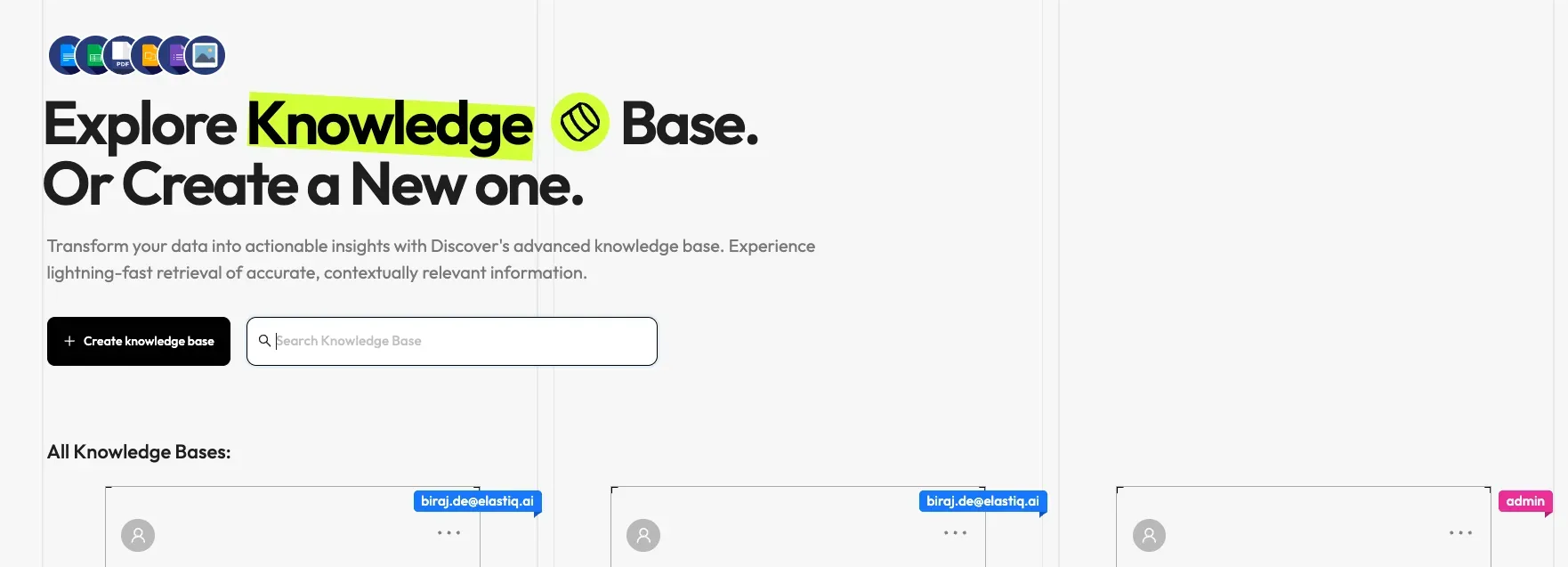
Section titled “Searching for a Knowledge Base”The search feature supports knowledge base search by name.
Deleting a Knowledge Base
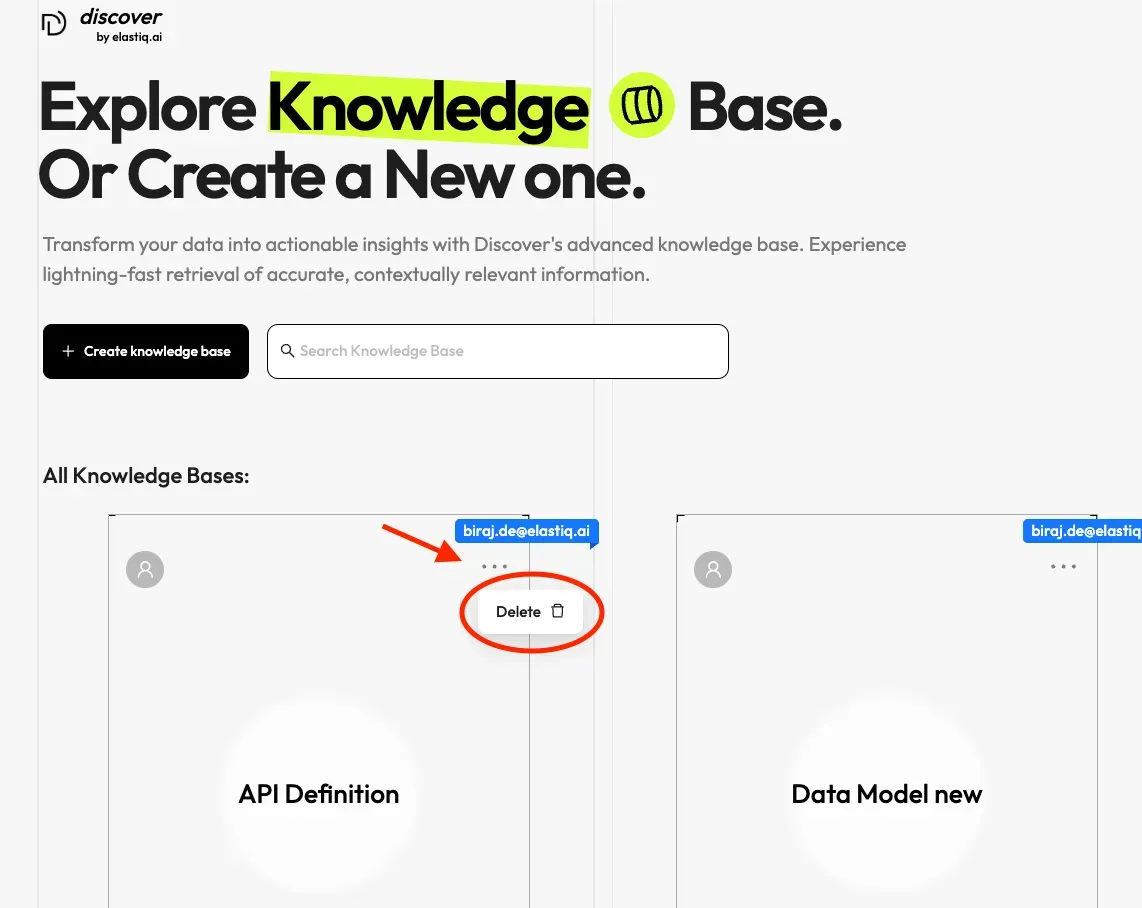
Section titled “Deleting a Knowledge Base”You are allowed to delete a knowledge base. Hover your mouse over the three dots of the intended knowledge base card and the Delete option appears.