
Adding Users
There are two ways to grant users access to Discover: through an Identity Provider (SSO) or via Username & Password. Both are managed through the admin console.
Option 1: Identity Provider / SSO
Section titled “Option 1: Identity Provider / SSO”Set up single sign-on so users can authenticate with an existing provider (Google, GitHub, Microsoft, etc.).
-
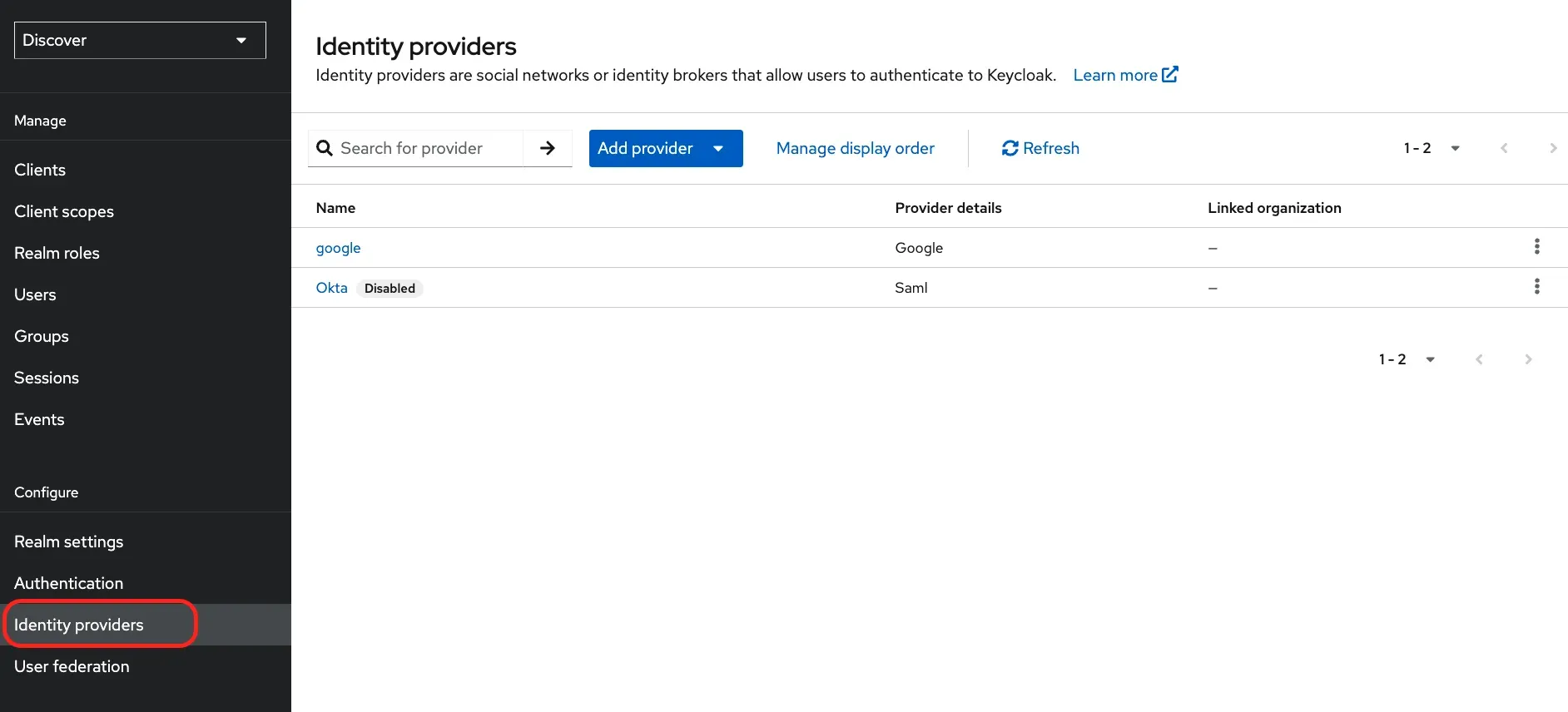
Open Identity Providers
In the Keycloak admin console, select your realm from the top-left dropdown, then click Identity providers in the left sidebar.
-
Select a provider
Choose from the list of supported providers (e.g. Google, GitHub, Microsoft, SAML v2.0, OpenID Connect).
-
Enter provider details
Fill in the required fields:
- Redirect URI — copy this and register it with your identity provider
- Client ID — from your identity provider’s app registration
- Client Secret — from your identity provider’s app registration
Save the configuration.
-
Configure the Keycloak client
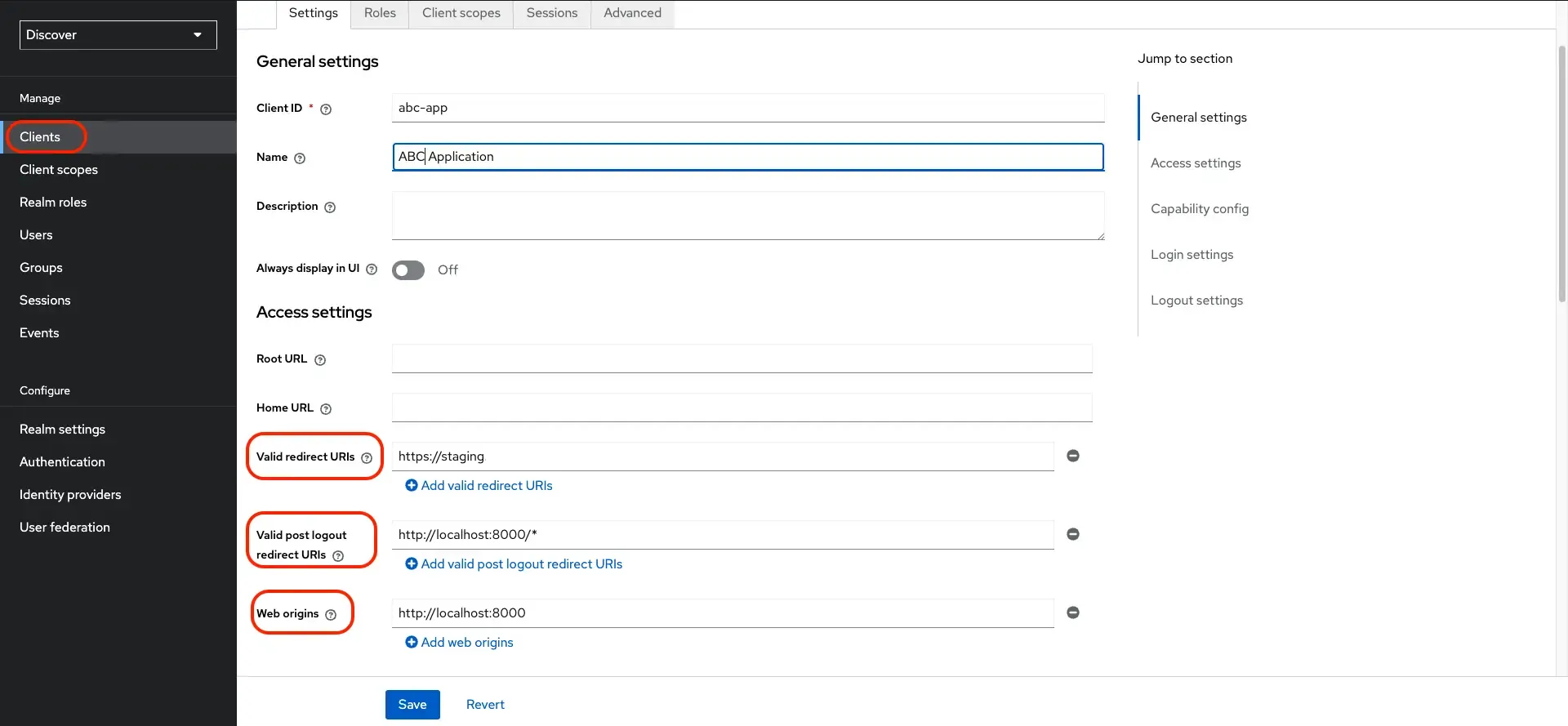
Navigate to Clients in the left sidebar and open the client whose Client ID matches what you registered with the provider.
-
Set access URLs
Under the Access settings section, configure:
- Valid redirect URIs — the URL(s) your app is allowed to redirect to after login (e.g.
https://your-discover-domain/*) - Valid post logout redirect URIs — the URL(s) allowed after logout
- Web origins — your app’s base URL for CORS (e.g.
https://your-discover-domain)
Click Save.
- Valid redirect URIs — the URL(s) your app is allowed to redirect to after login (e.g.
Your Discover instance is now ready to register and authenticate users via SSO.
Option 2: Username & Password
Section titled “Option 2: Username & Password”Allow users to self-register or be invited using an email address and password.
-
Open Realm settings
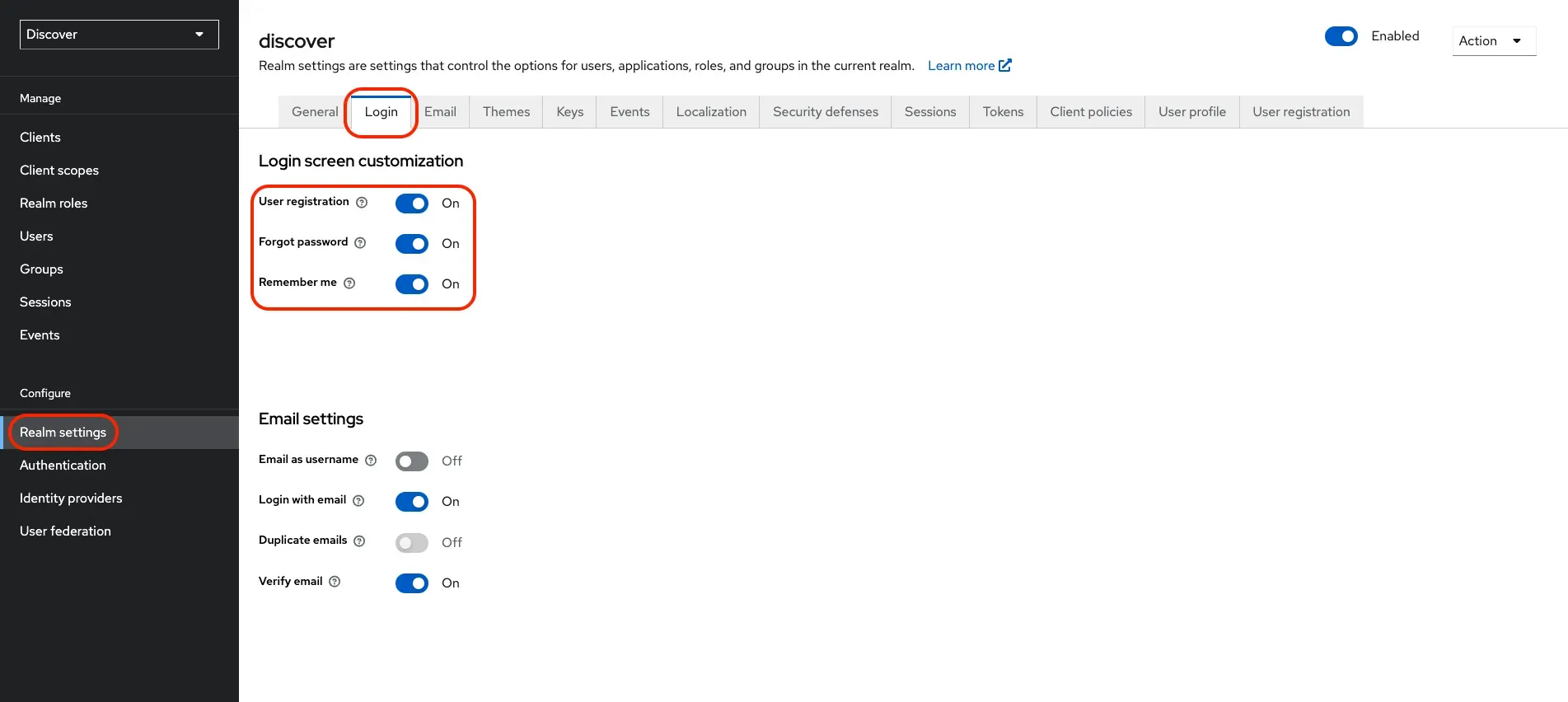
In the left sidebar, click Realm settings, then go to the Login tab.
-
Enable login options
Turn on the following toggles:
- User registration — allows new users to sign up
- Forgot password — enables the password reset flow
- Remember me (optional) — lets users stay logged in
- Login with email — allows sign-in using an email address
- Verify email — sends a verification email on registration
-
Configure SMTP
Go to the Email tab in Realm settings and fill in your SMTP server details so Discover can send verification and password reset emails.
Your Discover instance is now ready to register users via email and password.
Once users are onboarded, see Role Management to assign the appropriate access level.